Sisu instructions: Timeline
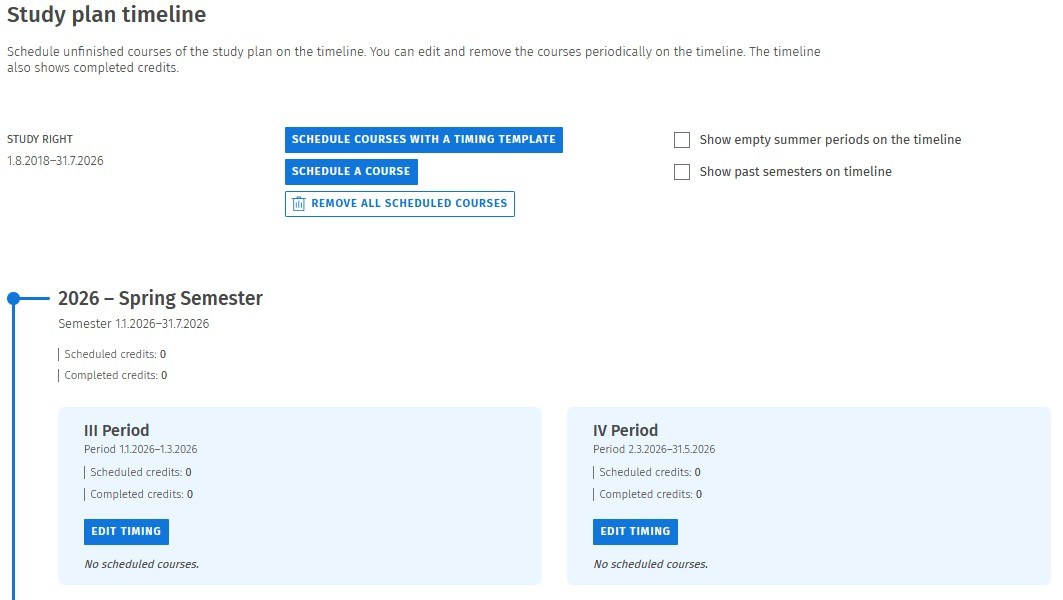
You can schedule the studies you have selected in your study plan. Scheduling is an essential tool for planning your studies. It helps you visualize the progress and workload of your studies by period and academic year. Scheduled courses will appear by period on the Registration tab, making it easier to register for teaching.
In the Timeline view, you can:
- Plan the order of courses at the degree level.
- Use a timing template.
- Distribute workload evenly across semesters.
Note: Preparing the timeline for your studies is mandatory when applying for an extension of study time.
Quick Guide
- Check that your study plan is up to date on the Structure of studies page.
- Select Timeline from the top menu in Sisu and choose the study plan you want to schedule.
- Click on Schedule courses with a timing template and choose a suitable template.
- Schedule remaining courses individually by using the Schedule a course function or by selecting Edit timing function on desired teaching period.
- Maintain your timeline at least annually or when your plans change.
Instructions for Functions
Adding a course to the timeline
There are two ways to schedule a course.
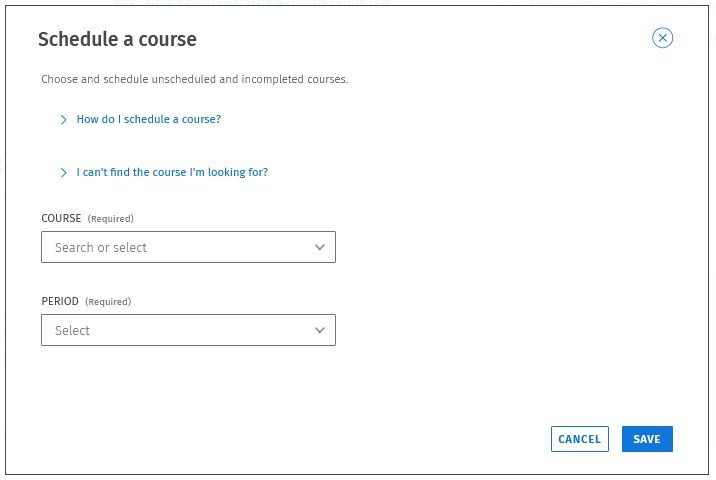
- Scheduling a single course using the "Schedule a course" function
- Select "Schedule a course". From the modal that opens, choose the desired course and a period for it. Save.
- This function lists only the unscheduled courses that you have added to your study plan and have not yet completed.
- You can schedule a single course for one or more periods.
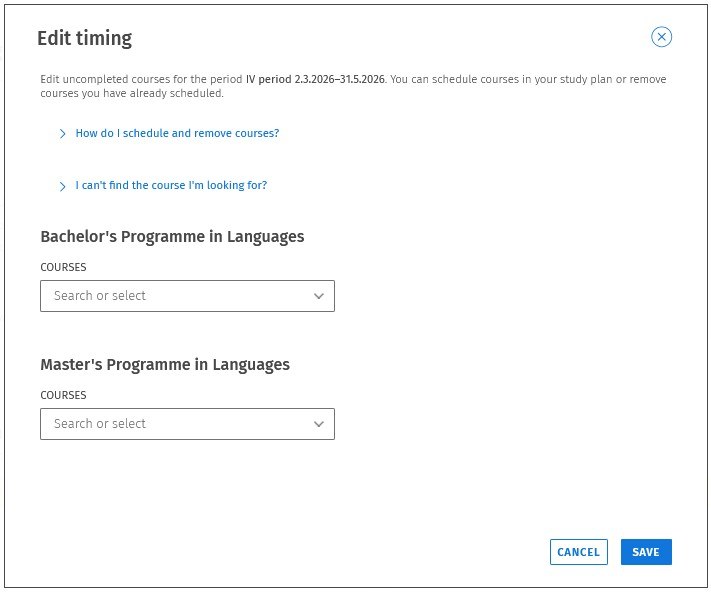
- From a period, choose "Edit timing"
- For the desired period, select "Edit timing". From the modal that opens, choose the courses you want to schedule. Save.
- If you want to schedule a course for multiple periods, schedule it separately for each period.
- The course search lists all courses you have added to your study plan that you have not yet completed. You can also see the courses that you have already scheduled.
Removing a course from the timeline
- Select Schedule courses, deselect the course, and save.
- To remove all schedules and courses, select Remove all schedules at the top of the page.
Changing a scheduled course
- Currently, there is no separate function to change or move course timings.
- Remove the course from one period and add it to another to change the schedule.
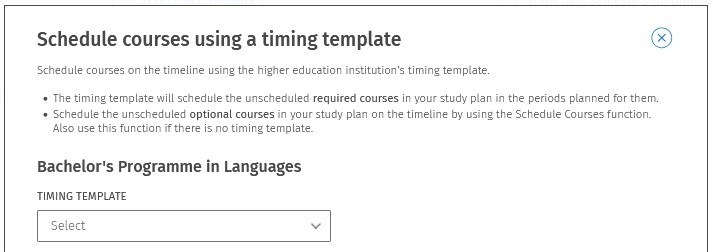
Timing template for bulk scheduling
- A timing template is a recommendation for course schedule prepared by your degree programme. It does not cover all courses in your plan (e.g., electives).
- The timing template will schedule the unscheduled required courses in your study plan in the periods planned for them.
- Select Schedule courses with a timing template and choose a suitable timing template. Click Schedule. You will most likely want to choose the template for the year in which you began your degree.
- Continue and schedule the courses that were not included in the timing template by using the Schedule Courses function.
Additional Notes
If you add course units to your study plan after scheduling, they will not be scheduled automatically—schedule them separately.
Sisu does not warn if you place a course unit in a period without teaching. Check each course’s teaching period.